
I was quite excited when our new MacPro arrived last week after 2 months of back order. Although it’s main use will be as an edit suite in the office I can see it becoming a regular traveller to some of the larger shows. As such I made it my job to spend some time trying various connections and resolutions in both OS-X and Windows. I had hoped it would be a quick post saying it all worked amazingly well but from initial testing those of us planning on using one (and a backup of course) for shows will need to do extensive testing to make sure the little trashcan can do what it should.
The Machine –
- 3.0GHz 8-Core Intel Xeon E5
- 32GB 1866MHz DDR3 ECC – 4X8GB
- 1TB PCIe-based Flash Storage
- 2x AMD FirePro D700-6GB VRAM
- OS-X 10.9.2
- Windows 8
4K + 4K + 2k = OK
Apples promotional material mention support for up to 6x 1080 displays or 2x 4k Monitors. I unfortunately don’t have a 4k monitor to test the maximum output on let alone two but we do have a couple of bits of gear that can take some form of a 4k feed and at least indicate it’s working – in my case a Blackmagic ATEM 1M/E 4k and a Datapath X4 image wall processor.
So far I can confirm that the MacPro can handle more than just 2x 4k outputs (at 30hz) – in my case I had both outputs running at 3840×2160 and a 3rd monitor running at 1920×1080. I did load a 7680×2160 clip into Millumin and noticed some stutter but it could be to do with the outputs sub 50Hz refresh rate as the both the CPU and RAM reported low usage numbers.
This could all change with the release of 10.9.3 which has already show come quite bit improvements with both 60Hz and HiDpi support coming to both the MacPro and 2013 rMBP.
Built in HDMI Out
Based on OS-X System Info this port is considered a Passive connection and so is considered 1 of your 2 passive connections available to use – want 2 outputs and an HDMI out? Well you’ll need an active adaptor to get them all to work. I’m also yet to get Windows to work with this port at all.
Active vs Passive Mini Displayport Adaptors
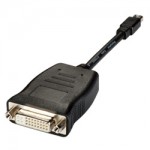 First off – Not all adaptors are created the same and if you want more than 2 outputs from a MacPro you’ll need ACTIVE adaptors. A quick eBay search shows the price difference.
Now from my experience (albeit by testing only a couple of options) not all active miniDP adaptors are the same either. I bought the cheapest active adaptors I could find and although they were fine for DVI they wouldn’t display HDMI in the right colour space in OS-X (although Windows was fine).
Also another note that all miniDP->VGA adaptors are active as they need to convert from a digital to analogue signal.
OS-X Quirks
OS-X has always been the weaker performer when it comes to GPU performance compared to Windows and even though the MacPro is a graphical powerhouse I’m still expecting the same app on either platform to perform at least 20% better on Windows.
First off – as previously mentioned – you can only use 2x generic miniDP->DVI/HDMI adaptors before you need to invest in Active adaptors. Plugging more screens won’t make any difference – they just won’t work. What’s weird/interesting is that 3+ passive adaptors will work in Windows.
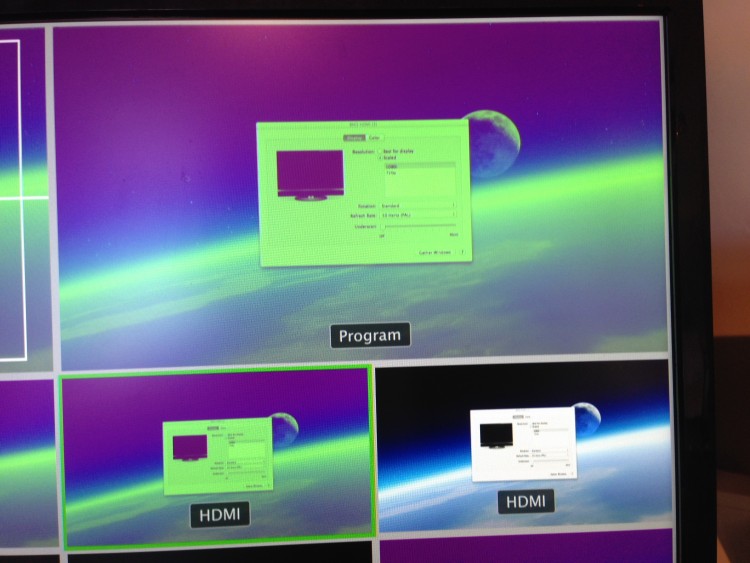 Now depending on which active adaptors you have will depend on how well they work – I have two to try – the official Apple Dual Link DVI adaptor ($NZ159) and a cheaper Wieson adaptor bought for $NZ40. When connecting DVI both work perfectly – but when connecting HDMI the Wieson used a weird colour profile and was unusable. The Apple one worked no matter which connection I used at the other end.
As OS-X doesn’t support AMD Crossfire each card is considered an individual card and all connections are routed from a single card (slot-1) with the other card (slot-0) never shows anything connected (as is also the case in Windows).
Windows Quirks
The new MacPro supports only Windows 8.1 so despite me hoping to avoid that turd I’ve been forced to give it a whirl. For now I’ve only used the bootcamp gfx drivers but apparently you can also install the current AMD drivers. I’ve also enabled CrossFire so both cards should work as one.
First off – never expect your outputs to be laid out the same on reboot. What was your primary display on one boot may completely shift to another output on reboot. This is a major pain for those of use wanting things to be exactly as they just were (crazy I know). With no primary connection any port seems to be chosen at random to be your primary screen.
Even though I got 6x 1080 outputs correctly working in Windows 8.1 eventually, upon rebooting all previous resolutions were lost (except for the 2x connected monitors) and no amount of replugging order would work to get back to 1080 output being an option for the 4x feeds going into our Blackmagic 1M/E switcher. Even trying another brand HDMI->SDI adaptor wouldn’t help Windows set the output resolution to 1920×1080.
Wrap Up
So there you have it – lots of little issues but once some bugs are fixed, hopefully soon, the Mac Pro should make for quite the playback machine for gigs that need lots of outputs from a single computer.



 I’ve been using a Mac for the last 4 years and I’ve over time built a little list of apps that must be installed. I thought I should share them here. They are all free to download or open source so go give them a try. Feel free to share some more in the comments.
 The Unarchiver – an open source decompressor app. For years stuffit was either preinstalled or a must download on the Mac. Over time the the program gained the usual bloat of over developed applications. Apple has included a built in zip tool for a while but it’s file support was limited really only dealing with zip’s. The Unarchiver, which is open source will extract RAR, ZIP, 7-Zip, LHA, SIT, HQX and TAR files to name just a few. The app has enough options to do everything you could need. To install, just drag it into your Applications folder, run once to set associations and you’re done.
 Perian – Chances are you’ve already got this – if not – get it. Perian is a free, open source QuickTime component that adds native support for many popular video formats. XVID, Divx, AC3, MKV, FLV and even adds subtitle support. The only thing missing is extensive WMV support – for that check the free
  VLC – if you do find a video that won’t play via Perian then VLC should have it covered. If you have these 2 apps installed there are few files you can’t play. Personally I find VLC’s interface clunky to use but as I say – it will play everything.
 MPEG Streamclip – Where Perian is ‘the swiss army knife of video playback’, Streamclip is surely the swiss army knife of video conversion. It allows for setting in and out points and will read almost every format – from malformed mpeg2 streams to xvids to quicktimes to avi’s. I haven’t met a clip I can’t convert with this app.
 TextWrangler – an extremely versital text editor. Made by the company that makes BBEdit, this is a cut down yet surprisingly feature complete version. TextWrangler supports source formatting and is the one stop tool for editing HTML, PHP, plists or just about anything else.
 MAX – One stop open source audio converter – it will change anything to anything else. MAX can convert over 20 compressed and uncompressed formats including MP3, Ogg Vorbis, FLAC, AAC, Apple Lossless, Monkey’s Audio, WavPack, Speex, AIFF, and WAVE.